

Blog  Ryan Rapp
AI Coding: From Vibes to Proofs
August 1, 2025
3 min read
Read more
Ryan RappA knowledge worker's guide to building a superproductive workflow
Ryan Rapp Ryan Rapp
 Ryan Rapp
 Ryan Rapp
 Ryan Rapp
 Ryan Rapp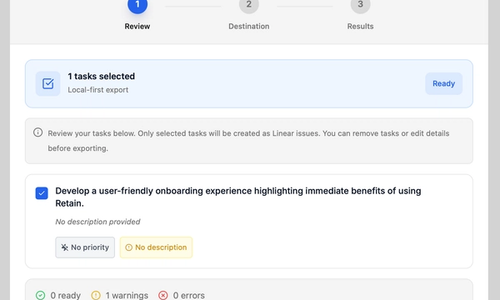
Data Export Retain gives you a few flexible ways to get your notes and tasks out of the app—whether you’re sharing with a teammate, writing an email, or turning work into trackable issues.
Retain’s Linear integration lets you export tasks from Retain into Linear issues on **linear.app**. Exports are local-first: Retain only sends the tasks you explicitly select. Nothing syncs silently in the background
Keyboard Shortcuts Retain supports keyboard shortcuts to help you work faster. On Mac, shortcuts use the Command (⌘), Control (⌃), and Option (⌥) keys. On Windows, use Ctrl and Alt instead.
Common Issues Installation
Get started using Retain by downloading for your device:
Privacy & Security Retain is designed with your privacy in mind. This section explains how your data is handled and protected.
Subscriptions Please reach out at contact@retainapp.ai for questions regarding subscriptions.
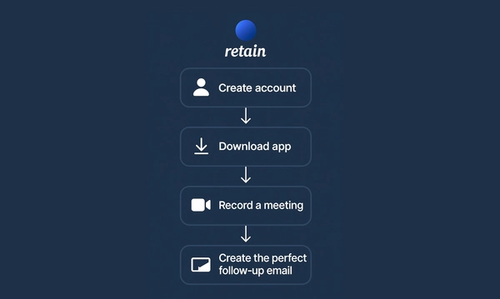
Quickly get started using Retain in four steps:
Frequently Asked Questions General
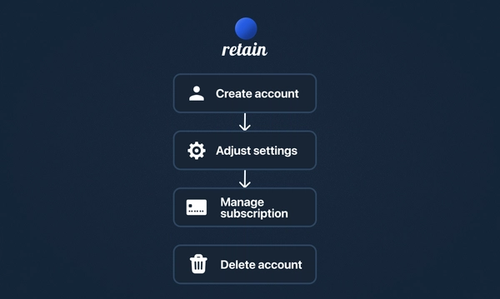
Manage your Retain account:
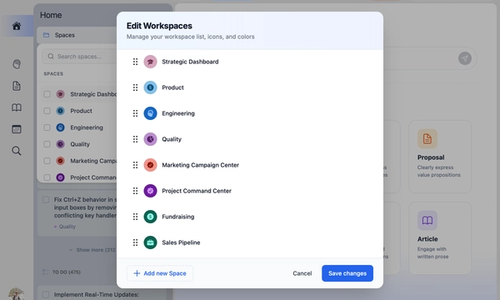
Workspaces Workspaces help you organize your meetings, calendar events, emails, and documents into separate project spaces. Instead of sifting through everything at once, you can focus on what's relevant to a specific area of your work.
Introduction: Discover How Retain Becomes Your Productivity Superpower Retain is an interactive AI knowledge‑management platform designed to transform how you capture, organize, and act on information. Retain combines your institutional knowledge—such as meeting notes, commitments, and deadlines—into one structured, easily accessible platform.

In this guide you will learn to: Capture a meeting, such as Google Meet, Zoom, or Microsoft Teams into notes as part of your professional knowledge base

Retain makes it easy to write professional, high-impact emails by collaborating with a team of AI expert agents. Here’s how you can use Retain’s AI team features and enhancement tools to improve your email workflow: 1. Select an Expert Agent
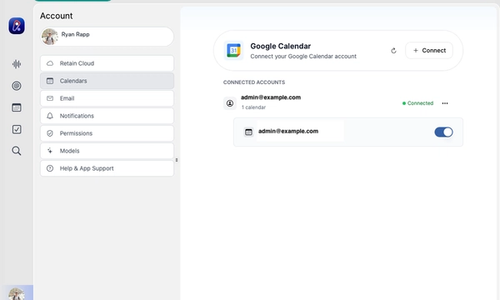
This guide explains how to add, manage, and remove Google Calendars in the Retain macOS app. Adding a Google Calendar
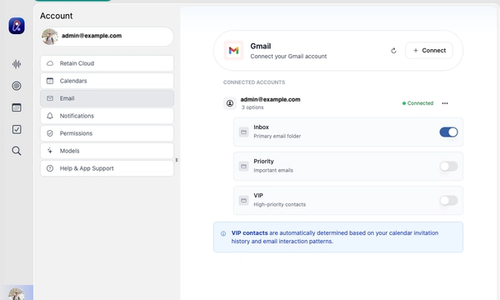
This guide explains how to add, manage, and remove Gmail accounts in the Retain macOS app. Key Benefits