Back to User Guide 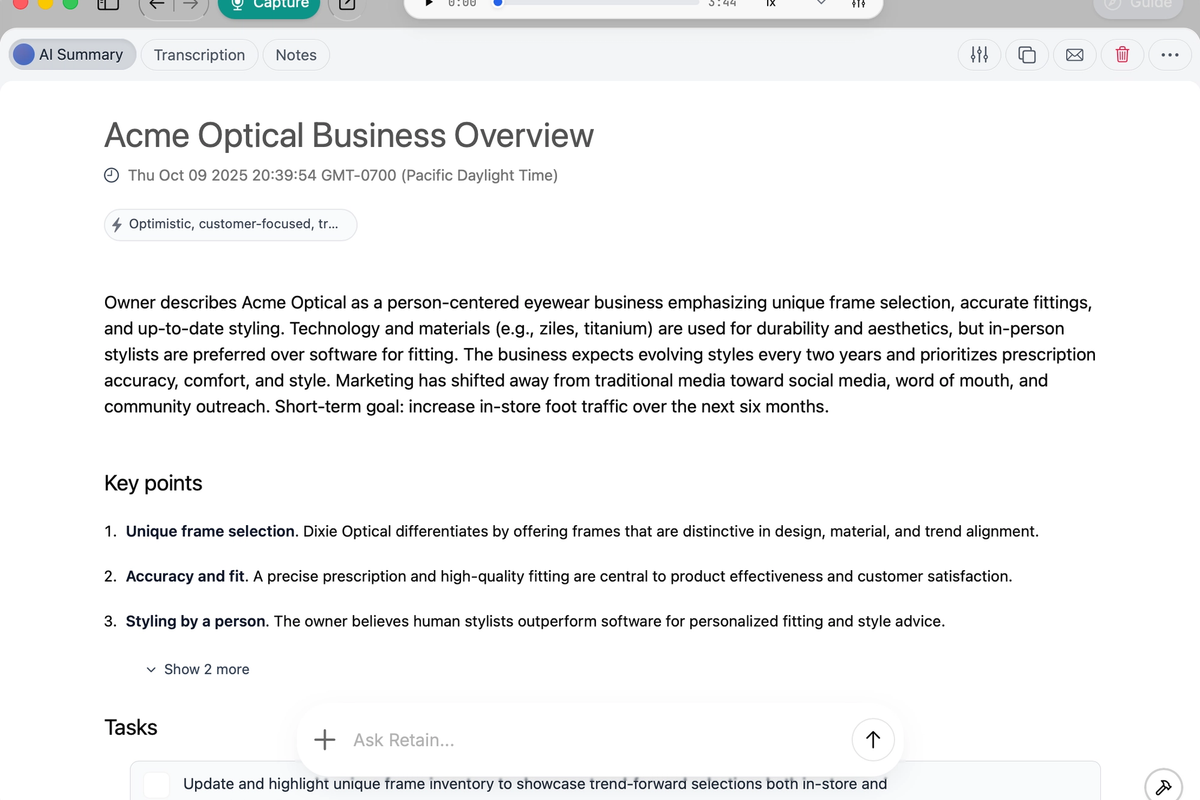
ProductivityUsing AI
Retain App: How to Capture Meetings with Retain
November 9, 2025
1 min read
In this guide you will learn to:
- Capture a meeting, such as Google Meet, Zoom, or Microsoft Teams into notes as part of your professional knowledge base
For more information on leveraging your knowledge base, see Retain App: Write more effective emails with deep expertise.
Step 1: Install and Set Up Retain
- Download the Retain app from your preferred source.
- Complete the audio onboarding process, which includes granting microphone and screen-sharing permissions.
- Complete the
- Note: Screen sharing is only used to capture speaker audio accurately in platforms like Zoom or Google Meet.
- If you use earphones or an external microphone, click the preferences slider icon in the status bar to select your microphone device.
Step 2: Capture Your Meeting
- At the beginning of your meeting, press “Capture” in the Retain app.
- Retain will display real-time transcription, making it easier to follow along during meetings and ensure notes are accurate.
Step 3: Complete and Save Your Meeting
- When your meeting ends, press “Complete.”
- Retain will postprocess the audio for maximum transcription quality, then generate a high-fidelity transcription and a detailed, AI-powered summary.
- The meeting is automatically indexed in your memory and knowledge base within Retain.
Step 4: Leverage Meeting Knowledge
- When writing emails with Retain, the app will utilize your meeting memory to make communications more accurate and context-aware. This helps with precise follow-ups and streamlined task delegations.
- You can also draft proposals, creative works, and other documents using insights and content from your knowledge base directly within Retain.
Step 5: Automate Meeting Capture
- Connect your Google Calendar to Retain to automate capture.
- When a meeting is about to start, Retain sends a notification.
- With one click, you can join the meeting and begin capturing immediately—no manual start required.
Tip: The more meetings you capture, the richer and more useful your Retain knowledge base becomes
Need help?
Can't find what you're looking for? Contact our support team for a quick reply.
Contact Support